(I have no idea what i’m doing)
Hello! In this posts series you will join me in my very random research, where I’ll try to RE dsreg.dll and learn its functionalities (:
dsregcmd is a command you can run on your Windows machine (I think Windows 10+).
It provides information about your device status in terms of Azure—whether it’s joined or registered, whether you have a PRT, etc.
Let’s run it and see its output:
It is mainly used with the command “/status”

We can see some interesting information here. I hope that during this series, we will cover the most interesting parts.
I started by running it with /? to explore its capabilities:
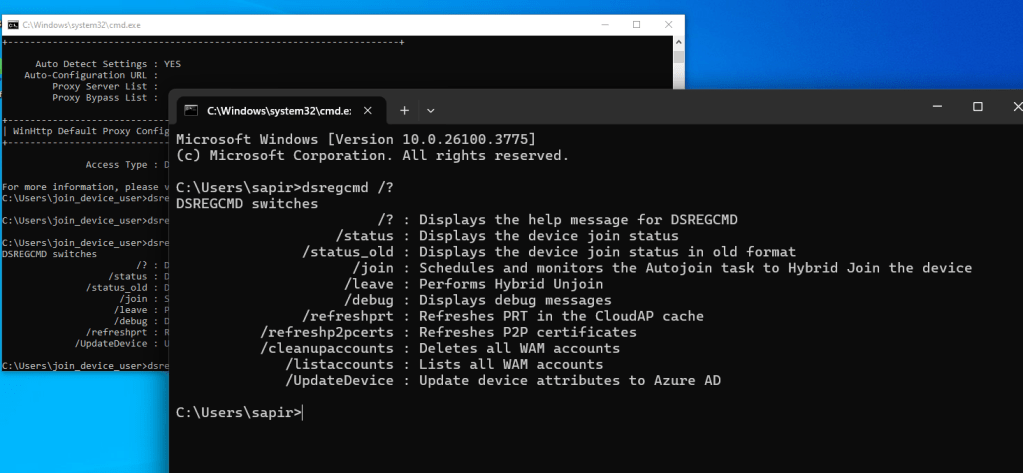
The first thing I noticed is that on Windows 11, there are more functionalities, such as listAccounts. Hopefully, I will get to this function in the future.
I decided to start with UpdateDevice. My first research goal is to understand how this function works, and whether I can force it to change some device attributes in Entra.
Is there any attack surface here? I don’t think so.
(Spoiler – there isn’t ☹)
So why am I doing it? I think it’s interesting, and I’ll probably learn a lot along the way.
The first thing I did was open dsregcmd.exe in IDA.
When I looked at the strings, I noticed it was missing the help screen strings, and in terms of functions, it also seemed to be missing a lot of things.
So, I went back to System32 and saw there’s a DLL called dsreg.dll.
I ran strings on it and found all the strings I had expected to see in dsregcmd.
From that moment, I only worked on the DLL, since (at least so far) it holds all the functionalities I wanted to learn about.
dsreg.dll
Fun fact: it’s probably the second time I’ve opened a file in IDA and actually tried to understand it, so I probably did a lot of things wrong (:
After some weird adventures inside the dsreg code, I decided to see what happens in Procmon.
I created a device (Windows 10 VM), registered it to Azure, and realized that if I wanted the UpdateDevice function to actually do something, I should probably change something.
I saw that there are some related registry paths in the code, and modified one of them:

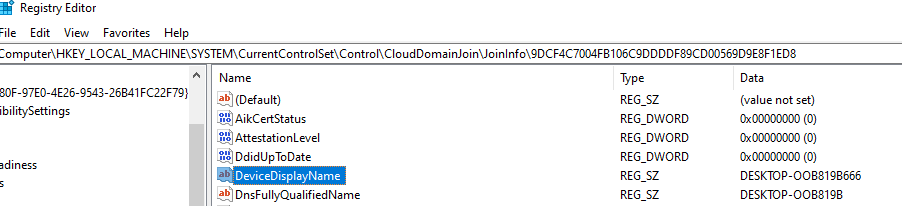
As you can see, I changed my hostname (added 666 at the end).😈
Then I opened Procmon and Burp while running the UpdateDevice command.
The first thing I noticed was that my hostname was changed back to the original name, and the registry change didn’t overwrite the name in Azure (which completely makes sense—I’m sure they aren’t taking it from the registry).
Procmon:
I was able to see the Set Registry Value operation.
I also saw the server message “The attribute ‘hostnames’ value(s) were successfully updated”, which is interesting—maybe I’ll be able to use it to learn more about the behavior.


\JoinInfo\6BC5A3B963731741C7965CF31E326AAAFE788C70\DeviceDisplayName
Burp:
Here, I actually saw something that caught my interest:


This replace API call is interesting. I have some questions here:
Why did it fail? What else can I do with this API?
Now it’s time to dig even deeper!
HUGE thanks to @DebugPrivilege for really helping me with WinDbg. You should definitely check out his guide!
I used TTD because it’s much easier to play with the flow that way.
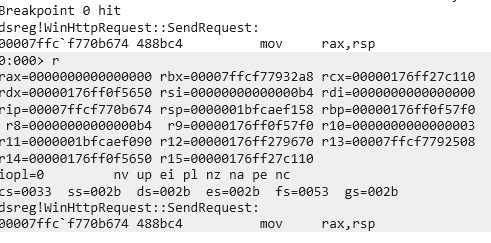
I started with a breakpoint in the UpdateDeviceAttribute function (don’t forget to change the device name to trigger the breakpoint).
At some point, I realized that the function I wanted to observe was related to WinHTTP, because I wanted to see the PUT request I saw in Burp.
So, I ran the following command:
dx @$cursession.TTD.Calls("dsreg!WinHttp*").Select(c => c.Function).Distinct()
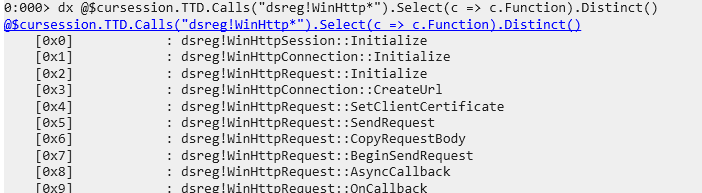
Then, I found two functions I wanted to check:
dsreg!WinHttpRequest::SendRequestdsreg!WinHttpRequest::ReadDataComplete
The first one creates the PUT request, and the second one receives the response.
First, I worked with TTD and ran this command to view the output of the call to ReadDataComplete:
dx @$cursession.TTD.Calls("dsreg!WinHttpRequest::ReadDataComplete").First().TimeStart.SeekTo()
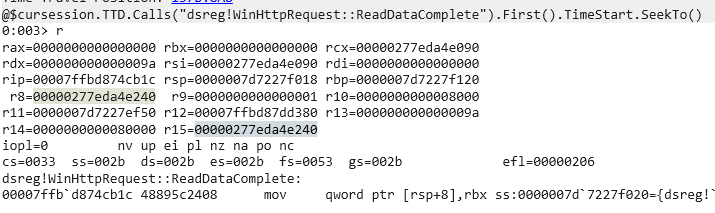
You can see the response in r15.

It’s the exact message we saw in the HostNameServerMessage.
Then, I checked the memory in SendRequest:
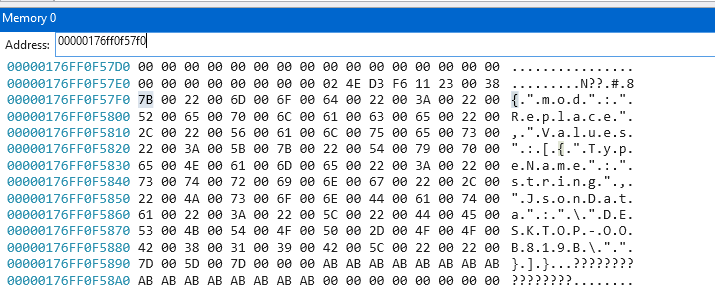
Ok, so I’m in the right place. I know where the request parameters are, and I know how to see the response.
At that moment, I switched back to normal WinDbg and set two breakpoints on these functions.
When I hit the breakpoint in SendRequest, I changed one letter inside the string—from B to A:
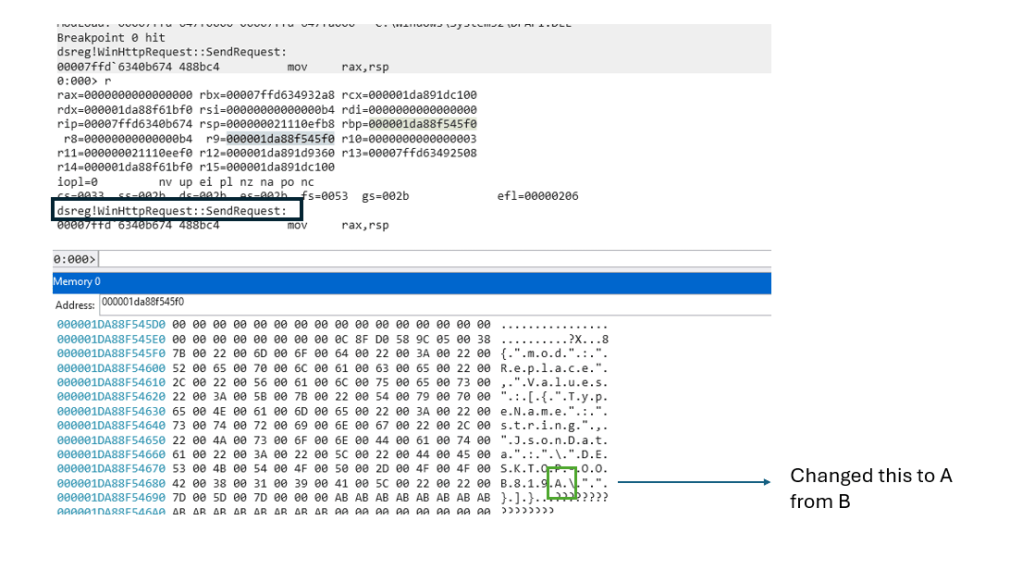
And it worked! The value changed in Entra!
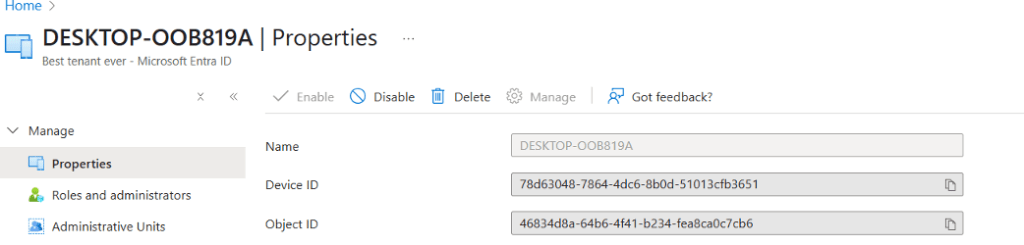
Cool, now I needed to make it work through Burp, since working with WinDbg isn’t exactly my strong side (I wouldn’t say Burp is my strong side either…).
Here, I need to give a HUGE thanks to @dirk-jan.
When I first tried to use Burp, I got an error related to TLS. Then dirk-jan explained that if I want to perform an action from a device, I should probably add the device certificate to Burp.
So, I created a fake device using Roadtx (woot woot!):
roadtx interactiveauth -u myuser@mytenant.com -p password -r devicereg
roadtx device -n pleaseWork
Saving private key to pleaseWork.key
Registering device
Device ID: 7ba9df17-f140-40ab-add2-1a5467ad9481
Saved device certificate to pleaseWork.pem
Then, I created a .p12 file from the device key and certificate and added it to Burp:
openssl pkcs12 -export -out cert.p12 -inkey your.key -in your.pem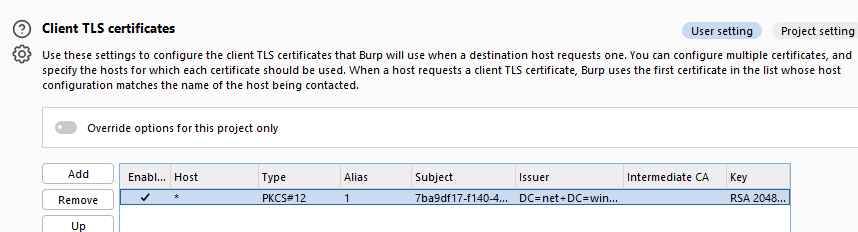
When I ran the request again, I got a different error:
The requested URL
/manage/eba5ea9a-b43a-4fab-af1d-f245e133078d/device/78d63048-7864-4dc6-8b0d-51013cfb3651/displayNamewas not found on this server. That’s all we know.
I decided I should probably try running this from a joined/registered device, not from my personal computer (I guess I wanted to create a more sterile environment, and I already knew this request should work from my joined device).
I executed the request from the device—and it worked!
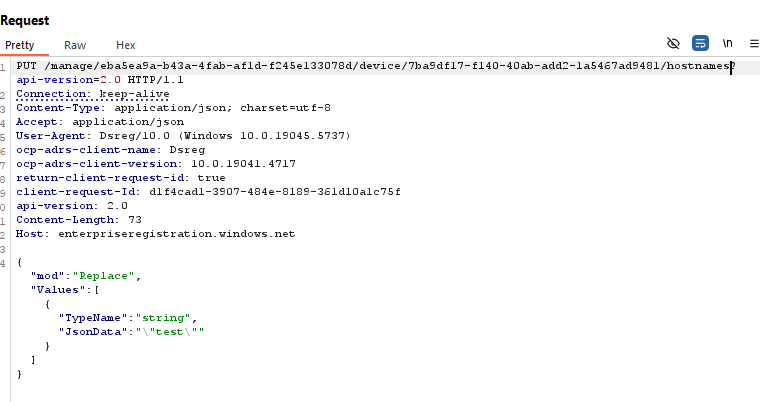
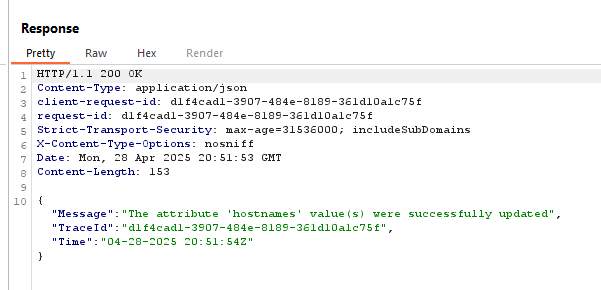
YAY! I was able to make something work!
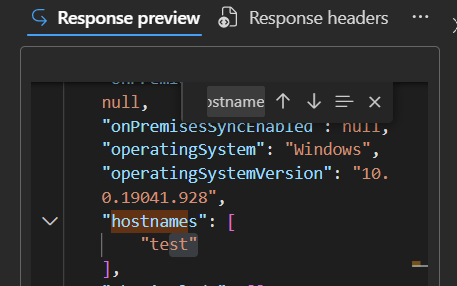
Now, I wanted to see which other fields I could change.
We know we can change the displayName (this one you can change from Graph Explorer as well),
and the hostnames (this one I actually couldn’t change using Graph Explorer).
BTW, when I tried changing the hostname to one that already belonged to a different device, I got an error saying that this hostname already belongs to another device. So, I assume this is a unique value.

The only other attribute that didn’t return the error "The specified attribute (<attribute>) is not supported" was accountEnabled.

Logs
I was able to find the log on the displayName change, but no logs for the hostnames change, which is quite cool!
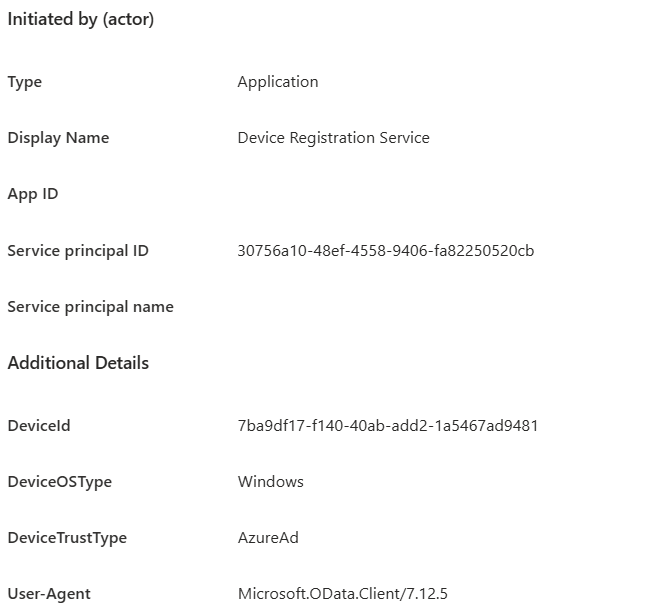
The initiator of the activity is the Device Registration Service which is also very nice if you don’t want someone to know what you did 😊
So to summarize this part of the research:
- I discovered a new API.
- I learned how to use it.
- It can’t help you do bad things.
- I really enjoyed it and learned a lot of new things!
See you in part 2!❤️😁
 Sapir's failed research blog
Leave a comment